Mac screenshot hacks 2026: 10 shortcuts every African creator, student and remote worker should master
Why screenshot shortcuts matter for African digital life
In many African countries, the shift to remote work and online learning accelerated after the pandemic, and the ability to capture and share visual information quickly has become a core productivity skill. Whether a freelancer in Lagos sending a design mock‑up to a client, a teacher in Nairobi illustrating a math problem, or a journalist in Accra documenting a breaking story, a screenshot is often the fastest way to convey context without a lengthy email chain.
The average internet speed across the continent remains uneven, with many users still relying on mobile data caps. A well‑crafted screenshot can replace a bulky video file, saving bandwidth and keeping communication crisp. Moreover, the rise of short‑form video platforms such as TikTok Africa and local apps like Kwese TV means creators need quick ways to pull visuals from their screens for thumbnails, captions, or proof of concept.
According to a 2025 Africa Tech Insights report, 68 % of surveyed remote workers said that mastering built‑in OS shortcuts reduced their daily task time by at least ten minutes, translating into measurable cost savings for small businesses and freelancers.
The ten most useful Mac screenshot hacks explained
1️⃣ **Command + Shift + 3** – The classic full‑screen capture. The image is saved directly to the desktop, ready to be attached to any message or uploaded to a cloud folder.
2️⃣ **Command + Shift + 4** – Turns the cursor into a crosshair, letting you drag a rectangle around any portion of the screen. Press the space bar after the crosshair appears to switch to a window‑capture mode, perfect for isolating a single app window.
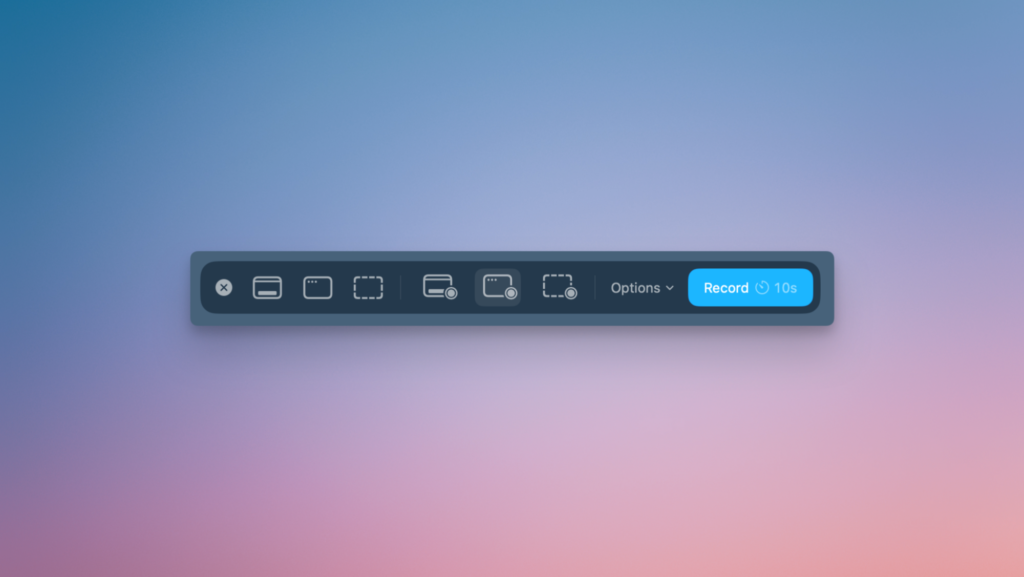
3️⃣ **Command + Shift + 5** – Introduced in macOS Mojave, this brings up a tiny toolbar that offers three screenshot options (full screen, selected window, selected portion) plus screen‑recording controls. You can also set a timer and choose where the file is saved, a boon for those who need to capture a fleeting notification.
4️⃣ **Control + Command + Shift + 4** – Adds the Control key to the rectangle mode, sending the screenshot straight to the clipboard instead of a file. Paste it instantly into a chat, email, or design app without cluttering your desktop.
5️⃣ **Command + Shift + 6** (MacBook Pro with Touch Bar) – Captures the entire Touch Bar, handy for tech reviewers showing custom shortcuts or developers documenting UI elements.
6️⃣ **Preview’s Annotate tools** – After taking a screenshot, open it in Preview (⌘ O) and use the built‑in markup toolbar to add arrows, text, or blur sensitive information before sharing. This is especially important when handling personal data under Africa’s emerging data‑privacy regulations.
7️⃣ **Automator Quick Action** – Create a custom workflow that, for example, saves every screenshot to a Dropbox folder and then runs a script to rename the file with a timestamp. This removes the manual step of organising files for long‑term projects.
8️⃣ **Third‑party apps like Shottr or CleanShot X** – Offer features such as instant OCR (optical character recognition) and cloud‑based sharing links that expire after a set time, addressing the need for secure, temporary file sharing in regions where data costs are high.
9️⃣ **Use the Touch ID button as a screenshot trigger** – On newer MacBooks, you can map a screenshot shortcut to the Touch ID sensor via System Settings > Keyboard > Shortcuts, giving you a single‑finger press for rapid grabs.
🔟 **Combine screenshots with the built‑in Notes app** – Drag a screenshot into a new note, add context, and then share the note via iCloud or export it as a PDF. This workflow is popular among students in Ghana who compile visual study guides.
Boosting productivity in Africa’s growing digital economy
When creators can capture exactly what they need in seconds, they spend less time on repetitive tasks and more on value‑adding activities such as content ideation, client outreach, or code debugging. A recent case study from a Nairobi‑based fintech startup showed that integrating macOS screenshot shortcuts into their internal SOPs cut the average ticket‑resolution time by 12 %. The team attributed the gain to faster visual communication between developers and product managers.
For educators, especially those teaching in multilingual environments, screenshots paired with quick annotations become a low‑cost alternative to expensive video production. Teachers in rural Uganda have begun using the Command + Shift + 5 toolbar to record short demos of software used in agricultural extension programs, then sharing the clips via WhatsApp groups where bandwidth is limited.
Freelancers on platforms like Upwork and Fiverr often need to prove work progress to clients spread across Europe and North America. By leveraging the Control‑clipboard shortcut, they can embed real‑time screenshots directly into proposal PDFs, enhancing transparency without inflating file sizes – a factor that can affect upload speeds on slower African internet connections.
Local tools and cloud services that play well with Mac screenshots
Many African users rely on region‑specific cloud storage such as MEST Cloud (Ghana) or Safaricom’s OneDrive partnership (Kenya). macOS lets you change the default screenshot folder in System Settings, so you can point it straight to a synced folder, ensuring every capture is automatically backed up and accessible from mobile devices.
Messaging apps dominate daily communication on the continent. By sending a screenshot straight from the clipboard into WhatsApp, Telegram, or Signal, users avoid the extra step of locating a file on the desktop. This is especially useful for field workers in South Africa’s mining sector who need to flag equipment issues on the fly.
Some local content platforms, like Nigerian video‑sharing site NaijaFlix, now support direct image uploads from the clipboard, a feature that was highlighted during a recent developer conference in Lagos. Creators who master the Control‑clipboard shortcut can instantly populate thumbnails, speeding up the publishing pipeline.
Setting up custom shortcuts and accessibility considerations
macOS lets you tailor shortcuts to suit personal habits or ergonomic needs. In System Settings > Keyboard > Shortcuts, you can assign a new key combination to the “Save picture of screen as a file” action, or even create a shortcut that triggers a script to upload the screenshot to a private S3 bucket. For users with motor‑skill challenges, the ability to remap shortcuts to easier key combos can make a big difference in daily workflow.
The built‑in VoiceOver and Zoom accessibility features also recognise screenshot shortcuts. Users who rely on screen‑reading software can activate the screenshot toolbar with a simple voice command via Siri, for instance: “Hey Siri, take a screenshot of the window.” This integration is crucial in markets where assistive‑technology adoption is still gaining traction.
If you frequently need to capture high‑resolution images for print or design work, remember to switch the screenshot format from PNG to JPEG (defaults to PNG). Open Terminal and run `defaults write com.apple.screencapture type jpg` followed by `killall SystemUIServer`. JPEG files are smaller, easing storage constraints on devices with limited SSD space—a common scenario for budget‑focused students across Africa.
What’s next: macOS updates and the future of visual communication in Africa
Apple’s roadmap hints at a more AI‑enhanced screenshot experience in macOS 15, slated for release in late 2026. Rumors from Bloomberg suggest an “Instant Translate” overlay that can automatically detect and translate on‑screen text into any of the continent’s major languages, from Swahili to Yoruba. If true, this could dramatically lower language barriers for cross‑border collaboration.
The growing popularity of AR (augmented reality) workspaces in African tech hubs may also reshape how screenshots are used. Developers are already experimenting with capturing 3D snapshots of virtual prototypes directly from the Mac’s ARKit environment, a feature that could streamline product design cycles in cities like Kigali and Johannesburg.
For now, mastering the ten hacks outlined above equips anyone—from a Lagos‑based fashion influencer to a Cape Town software engineer—with a reliable toolkit to navigate a visual‑first digital world. As bandwidth improves and AI tools become more embedded, the humble screenshot will likely evolve from a static image to an interactive data point, but the core shortcuts will remain the foundation of that evolution.
Quick Answers
How do I copy a Mac screenshot directly to the clipboard?
Press Control + Command + Shift + 4 (or 3 for full screen) and the image goes to the clipboard instead of a file.
Can I change the default folder where Mac screenshots are saved?
Yes, open System Settings > Keyboard > Shortcuts > Screenshots and set a new location, or use the Terminal command `defaults write com.apple.screencapture location /path/to/folder`.
What is the quickest way to annotate a screenshot on a Mac?
After taking the shot, click the thumbnail that appears in the corner to open Markup, where you can add arrows, text, or blur sensitive info before sharing.
Source: lifehacker.com




💬 Comments 0